
A slow website usually shows itself in under five minutes: run your homepage through a free speed test, and if the page takes longer than about three seconds to show its main content, it’s slow enough to cost you visitors. The good news is that most slow sites aren’t broken. They’re weighed down by a few common, fixable problems, like oversized photos, too many plugins, or cheap hosting that can’t keep up.
You don’t need technical skills for any of this. Plan on about 15 minutes to test and confirm, and an afternoon to knock out the biggest fixes. A typical example: a local bakery uploads a 6 MB photo straight from a phone camera to its homepage, and suddenly every visitor on a mobile connection waits an extra several seconds. Shrinking that one image can change everything.
Speed matters because people leave quickly. If your page hangs, they hit the back button and call your competitor instead. Search engines also notice slow pages, which can push you down the results.
In this guide, you’ll learn how to measure your site’s speed, spot what’s dragging it down, and apply fixes in a safe order, so nothing breaks along the way. If you’d rather hand it off, acreativeagency.ca can help.
What You’ll Need Before You Start Testing
Good news: you don’t need fancy software or a computer science degree to check your site’s speed. Most of what you need is free, and you probably already have access to it. Gather these before you start, and the testing steps later will go much more smoothly.
- A free speed testing tool: Google PageSpeed Insights, GTmetrix, or WebPageTest will load your page and grade how fast it feels.
- Your browser’s developer tools: Press F12 (or right-click and choose Inspect) to see a simple timeline of what loads and how long each piece takes.
- Your hosting login: This is where you’ll check your plan, server resources, and any built-in speed features.
- Your website dashboard or CMS login: In WordPress, for example, this lets you see plugins, themes, and settings you may need to adjust.
- A phone on mobile data: Switch off Wi-Fi so you see the site the way many real customers do.
Don’t worry if the developer tools look intimidating at first. You’ll only peek at one tab, and we’ll walk through it together. If you’d like a safe place to experiment before touching your live site, local website testing lets you try changes on your own computer first.
A quick tip: keep a simple notes file open while you work. You’ll want to jot down your starting numbers so you can prove later that your fixes made a difference.
Before You Change Anything: Safety Warnings and When to Stop
Speed fixes are low-risk when you go in with a little caution. A few habits will keep a quick tune-up from turning into a headache.
First, back up your site. Most hosts offer a one-click backup, and WordPress has free backup plugins. Do this before you touch any plugin, theme, or setting, so you can roll back if something goes sideways.
Next, change one thing at a time. If you compress images, install a caching plugin, and remove three add-ons all at once, you won’t know which change helped (or which one broke your contact form). Make a change, test it, then move on.
A few more ground rules are worth keeping in mind. If you’re not comfortable with code, don’t edit it on your live site. And if you come across files or folders you don’t recognize, leave them alone. They’re often essential, and deleting them is hard to undo.
Finally, know when to call in backup. If your site goes blank, throws error messages, shows a security warning, or customers can’t complete a purchase, stop what you’re doing. Restore your backup if you can, then contact your host or developer. Asking for help isn’t giving up. It’s the smart move that keeps small problems small.
Signs Your Website Is Slow (Even Before You Run a Test)

You don’t always need a stopwatch to know something’s off. Often your own experience and your customers’ behavior tell you first.
Here are the warning signs you can spot without any tools:
- The homepage feels sluggish, with a blank or half-built screen for several seconds.
- Visitors leave quickly, and your analytics show a high bounce rate on key pages.
- Shoppers add items to their carts and then abandon them before paying.
- The site crawls on your phone, even on a decent connection.
- Customers mention that pages “take forever” or that the site timed out.
- Your search visibility slips, with fewer visits arriving from Google than a few months ago.
Picture a local shop owner, Dana, who sells handmade candles. She checks her analytics one evening and notices that most phone visitors disappear within a couple of seconds. Her own laptop loads the homepage fine, so she assumes everything’s okay. Then she opens the site on her phone, over mobile data, and watches the page crawl while the big hero photo slowly paints in. Her visitors weren’t uninterested. They simply never got to see the products.
That gap between desktop and phone is worth remembering. Plenty of people browse on older devices and patchy signals, so a site that seems fine at your desk may feel painful in the real world. If you’ve ever tried to build a PHP site or manage one yourself, you know how easily small extras pile up behind the scenes.
If a few of these signs sound familiar, don’t worry. They’re a cue to measure properly, which is exactly what comes next.
How to Measure Your Website Speed, Step by Step
Understanding Your Results Without the Jargon
Speed tests spit out a lot of numbers, but you only need to understand three ideas.
How fast the main content appears. This is often called Largest Contentful Paint. Think of it as “when does the biggest chunk of my page actually show up?” Under 2.5 seconds is good. Over 4 seconds needs work.
How soon the page reacts. Tools may call this Interaction to Next Paint or Total Blocking Time. It’s the delay between tapping a button and something happening. If your menu feels frozen for a moment, this is the culprit. Under 200 milliseconds is good.
Whether things jump around. This is Cumulative Layout Shift. It’s that annoying moment when you go to tap a link and the page shifts so you hit an ad instead. A score under 0.1 is good.
Most tools color-code results: green is good, orange needs improvement, red needs work. Don’t panic over a few oranges.
Next, scan the list of suggestions. Tools usually rank them by potential time saved, so start at the top. A line like “Properly size images” or “Reduce unused JavaScript” tells you exactly what to tackle first, and you’ll learn how to handle the common ones in a later section.
One last tip: don’t chase a perfect 100. A mobile score in the 70s or 80s with green core metrics is a healthy site. Real visitors care how it feels, not the number.
The Usual Suspects: What Typically Slows Business Websites Down
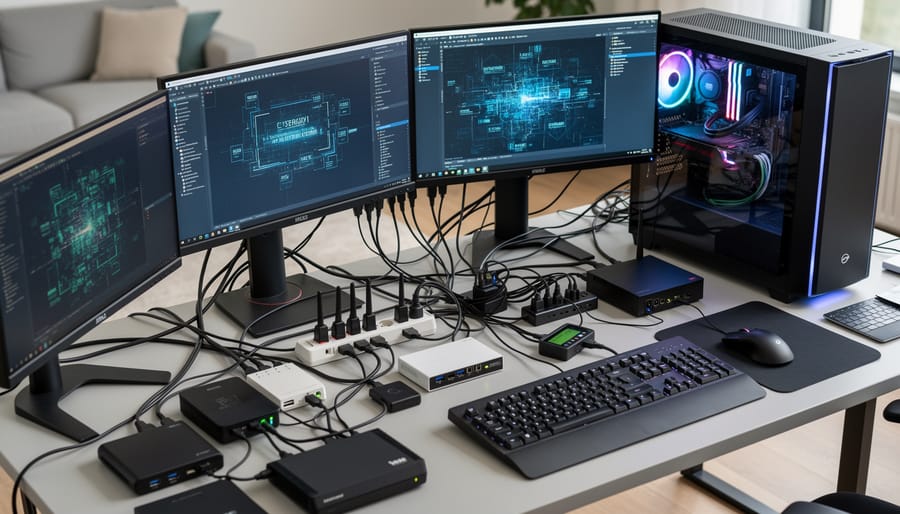
Most slow business sites aren’t broken in some mysterious way. They’re weighed down by a handful of familiar problems, and each one leaves a recognizable fingerprint. Here’s what to look for:
- Oversized images: a 5 MB photo straight off a phone forces visitors to download far more than they need, so pages feel heavy, especially on mobile data.
- Cheap or overcrowded hosting: your site shares a server with hundreds of others, so it responds slowly at busy times, no matter how tidy the pages are.
- Too many plugins or add-ons: each one adds code that has to load, and a long list quietly stacks up delays.
- Heavy themes or page builders: flashy layouts often ship with piles of code you never use.
- Third-party scripts: chat widgets, trackers and ad pixels call out to other servers, and if one is slow, your whole page waits.
- No caching: the server rebuilds every page from scratch for every visitor instead of serving a saved copy.
- Bloated or unoptimized code: messy scripts and slow database queries add processing time, which is why developers often optimize PHP + MySQL on custom-built sites.
- Outdated software: old CMS versions, themes and plugins miss performance improvements and can open security holes.
The useful part is matching cause to symptom. If every page is slow, even a plain text one, suspect your hosting or missing caching. If just your image-heavy pages crawl, look at photo sizes first. If the page appears quickly but then stutters or jumps around, a third-party script is a likely culprit. And if things got slower right after you installed something new, that new plugin or widget is the obvious suspect.
Don’t worry about untangling all of this at once. Your speed test results from the last step will usually point to one or two prime offenders, and fixing those is where you’ll see the biggest payoff.
Fixes That Usually Make the Biggest Difference

Once you know what’s slowing things down, work through the fixes in order of effort versus payoff. Start at the top of this list and stop whenever your speed tests look healthy.
- Compress and resize your images. Photos straight from a phone or camera are often several megabytes, far bigger than any screen needs. Resize them to the largest size they actually display (usually under 2000 pixels wide), then run them through a free tool like Squoosh or TinyPNG. If your site supports it, switch to modern formats like WebP, which look the same at a fraction of the file size.
- Turn on caching. Caching saves a ready-made copy of each page so your server doesn’t rebuild it for every visitor. On WordPress, a caching plugin such as WP Rocket or LiteSpeed Cache handles this with a few clicks. Many hosts also offer a built-in caching toggle in their dashboard.
- Remove unused plugins and scripts. Deactivate and delete plugins you no longer use, and review any chat widgets, trackers, or ad pixels you added over the years. Each one adds extra work for every page load. Remove them one at a time and recheck your speed.
- Add a content delivery network (CDN). A CDN stores copies of your images and files on servers around the world, so visitors download them from somewhere close by. Services like Cloudflare offer free plans, and setup is usually a guided process.
- Update your CMS, theme, and plugins. Updates often include performance improvements as well as security fixes. Back up first, then update one item at a time.
- Lazy-load below-the-fold content. Lazy loading tells the browser to wait on images and videos further down the page until the visitor scrolls near them. Many modern themes and caching plugins include this as a simple checkbox.
- Upgrade your hosting. If your server is slow to respond even after the steps above, it may be overcrowded. Moving from bargain shared hosting to a managed or higher-tier plan is the biggest change on this list, so save it for last.
Don’t underestimate the first item. Picture a small bakery whose homepage showcased a dozen gorgeous, full-resolution photos of cakes and pastries. Visitors on phones waited nearly ten seconds for the page to become usable. The owner didn’t touch her hosting or her theme. She simply resized and compressed those photos, and load time dropped to under three seconds. Orders from mobile visitors picked up within a few weeks.
That’s the pattern to expect: the easiest fixes often deliver the biggest gains. Make one change, retest the same page, and note the difference before moving on to the next.
Check That It Worked and Plan Your Next Steps
Once you’ve made your changes, re-run the exact same tests on the exact same pages you recorded earlier. Use the same tool, the same device setting (mobile and desktop), and test two or three times so one lucky or unlucky run doesn’t fool you. Put the new numbers next to your baseline. If load time dropped and the main content appears faster, you’ve got proof the fixes worked.
Don’t stop at the scores. Pull out your phone, switch to mobile data, and load the site the way a customer would. It should feel quicker, not just look better on a report.
Then test the things that make you money. Submit your contact form, run a test checkout, and log in to any customer account area. Speed tweaks like caching or removing plugins can occasionally break these, and it’s much better to catch that yourself than hear about it from a customer.
Over the next few weeks, keep an eye on bounce rate and conversions in your analytics. Faster pages often bring modest but steady improvements.
Make it a habit with a simple routine: run a quick check once a month, and test again whenever you add a plugin or upload large images. If scores stay poor after the basics, or something breaks and you’re not sure why, that’s the moment to bring in a developer.
Quick Answers to Common Website Speed Questions
How fast should my website load?
Aim for the main content to appear in about two to three seconds, and for the page to respond to taps right away. If visitors on a phone are waiting longer than that, it’s worth digging in.
Does speed really affect my Google ranking?
Yes, page experience is one of many signals Google uses, so a slow site can hold you back. It won’t outweigh great content, but it can tip close contests, and it affects whether visitors stick around.
Is slow hosting or a heavy design usually to blame?
Often it’s neither one alone. Oversized images and too many plugins are the most common culprits, so rule those out before paying for a hosting upgrade.
Can I fix this myself without a developer?
Usually, yes. Compressing images, turning on caching, and removing unused plugins are beginner-friendly, and you only need help if the site breaks or the slowdown is deep in the code.
How often should you test? A quick check once a month is plenty for most small business sites. Also run a test any time you add a new plugin, install a chat widget, or upload a batch of large photos, since those are the moments speed tends to slip.
If you find yourself curious about what’s happening behind the scenes, picking up a few JavaScript basics can help you understand why some scripts weigh a page down. You don’t need that knowledge to get started, though. A simple test, a few small fixes, and a re-test will take you most of the way.
Telling whether your website is slow doesn’t take special skills. A free speed test, a quick check on your own phone, and an honest look at how visitors behave will give you a clear answer in about ten minutes. And once you know, the fix is usually less dramatic than you’d expect. Smaller images, caching, a few fewer plugins, and sometimes better hosting solve most slow sites without a single line of code.
The best part is that you don’t need to do everything at once. Pick one page, run one test, and write down your starting score. That baseline is what makes every later improvement visible.
So don’t put it off. Run your first test today, make one small fix this week, and then treat speed like any other piece of upkeep. A quick monthly check will keep your site fast for the people who matter most: your visitors.